


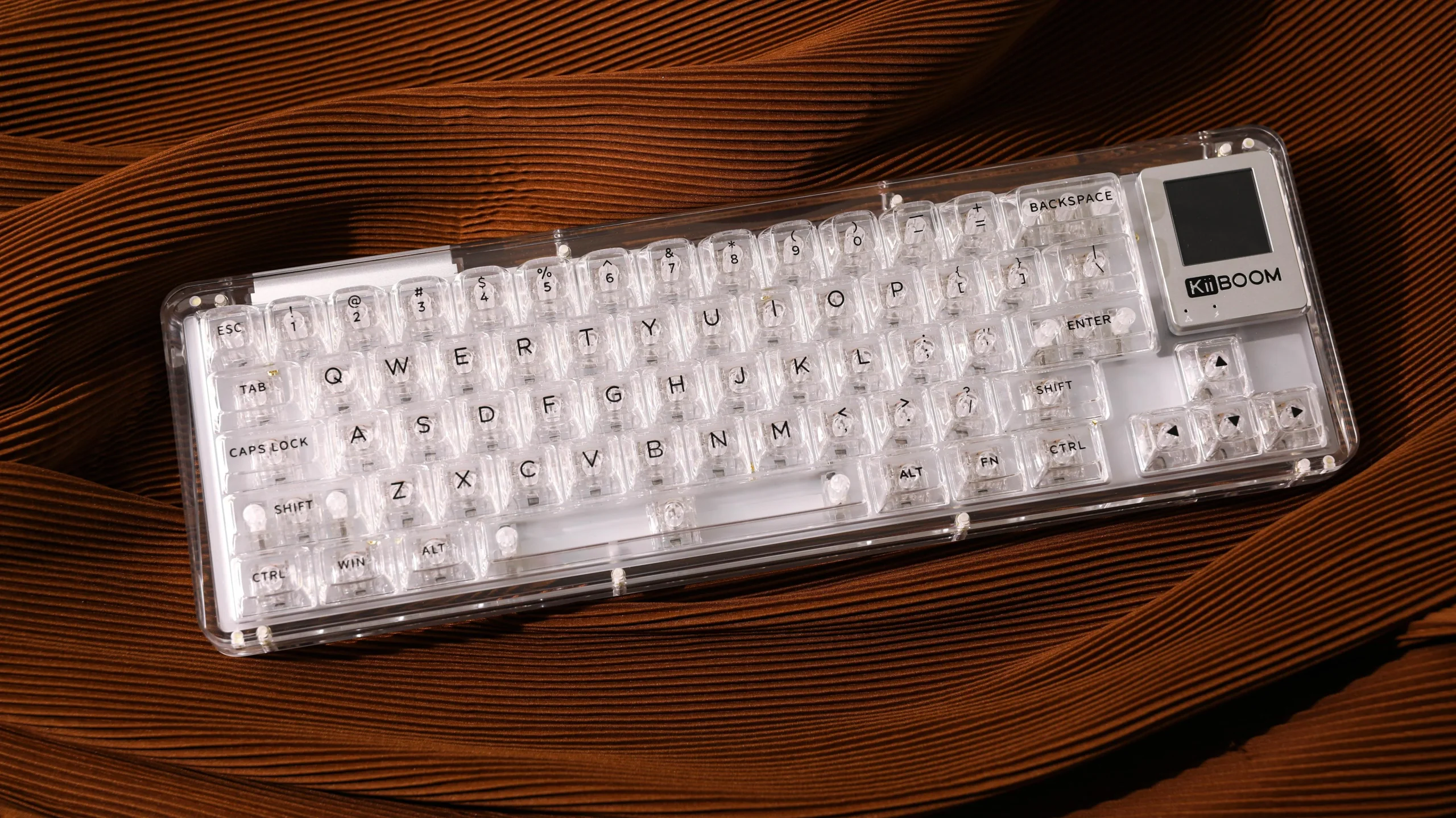
In today’s tech-driven world, keyboards are no longer just tools for typing—they’ve become a canvas for personalization and efficiency. Customizing your keyboard with display allows users to enhance functionality, aesthetics, and productivity. Whether you’re a gamer, a programmer, or someone who spends hours typing, there are plenty of ways to make your keyboard truly yours.
Why Customize Your Keyboard with Display?
Modern keyboards with integrated displays, such as OLED or LCD screens, provide real-time information, shortcuts, and visual feedback. By customizing your keyboard with display, you can:
- Access system stats like CPU usage or network activity without switching windows.
- Display your favorite animations, images, or icons for a personalized look.
- Map dynamic shortcuts for applications and games for faster workflow.
This not only adds a unique aesthetic but also boosts productivity, as critical information is always at your fingertips.
Tips for Customizing Your Keyboard with Display
Here are some practical tips to get the most out of your display-enabled keyboard:
1. Choose the Right Software
Most keyboards with displays come with proprietary software. Familiarize yourself with it to explore all customization options. Some programs allow:
- Assigning images or GIFs to specific keys.
- Setting dynamic macros that change depending on the application.
- Adjusting brightness, contrast, and refresh rate for optimal visuals.
2. Personalize Your Key Functions
Use your display to show the function of each key dynamically. For example:
- When in a graphic design tool, keys can show shortcuts for brush, eraser, or color picker.
- Gamers can display cooldown timers or key bindings directly on the key display.
By customizing your keyboard with display, you can make your workflow intuitive and visually appealing.
3. Explore Visual Themes
Don’t limit yourself to static images. Explore animations, gradients, and dynamic themes that respond to your typing. Many users create personalized themes that change according to time of day or active applications, creating a more immersive experience.
4. Maintain Readability
While aesthetics are important, functionality comes first. Ensure that icons, animations, or shortcuts are clear and easy to read. Overloading the display with too much information can reduce efficiency.
Advanced Tricks
- Layered Profiles: Set up multiple profiles for different tasks. For example, one profile for work with shortcuts to spreadsheets and emails, and another for gaming with macros and key indicators.
- Integration with Smart Devices: Some keyboards allow integration with smart home devices. Your display can show alerts, notifications, or even music controls.
Conclusion
Customizing your keyboard with display is more than just a trend—it’s a way to make your daily computing experience smarter, faster, and visually unique. With the right software, thoughtful personalization, and attention to usability, your keyboard can become a powerful tool that reflects your style and enhances productivity. Whether you are a professional, gamer, or hobbyist, these tips and tricks will help you get the most out of your display-equipped keyboard.
